> For the complete documentation index, see [llms.txt](https://terraform201.devart.tv/llms.txt). Markdown versions of documentation pages are available by appending `.md` to page URLs; this page is available as [Markdown](https://terraform201.devart.tv/0.-terraform-intermediate/iam.md).
# 초기화 IAM 사용자 생성
테라폼 초기 세팅을 위한 IAM 사용자 생성
### 초기화 IAM 사용자
* 초기 세팅을 위해서 필요한 임시 IAM 유저를 생성합니다. IAM 사용자도 Terraform으로 생성할 수 있지만, 그 사용자를 만들기 위해서 필요한 IAM 권한이 필요합니다. 따라서, 임시로 사용자를 만들고, 테라폼으로 실제 사용자를 만들 예정입니다.
* 본 사용자는 Terraform으로 생성되지 않기 때문에, Terraform으로 실제 사용자를 생성한 후에 삭제합니다.
### IAM 사용자 생성
1. IAM 콘솔에서 `사용자`를 클릭합니다.
2. `사용자 생성` 버튼을 클릭합니다.
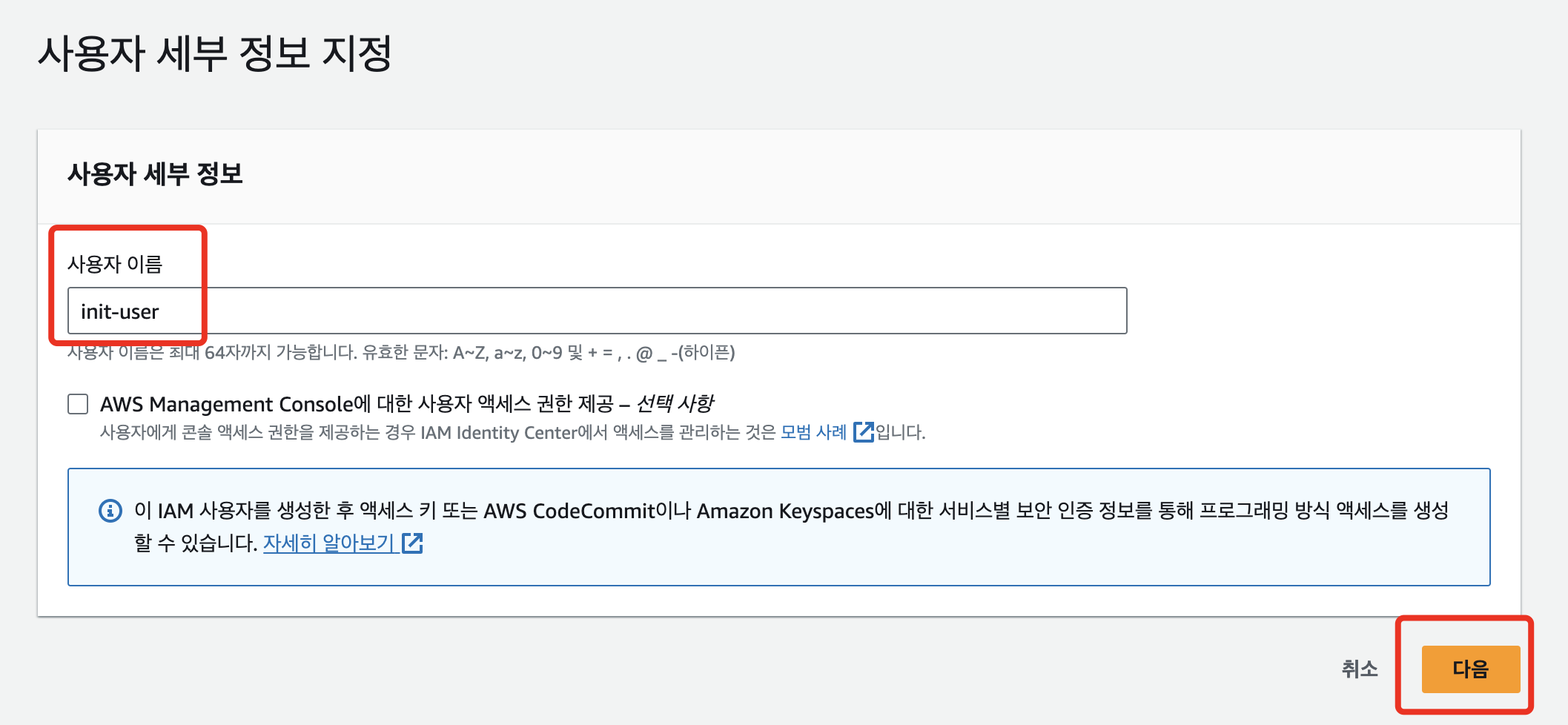
3. 사용자 이름을 입력하고, `다음` 을 클릭합니다.
4. `직접 정책 연결` 중 `AdministratorAccess`를 선택합니다.
5. `다음` -> `사용자 생성` 을 클릭합니다.
6. 다음과 같이 사용자 화면에서, `init-user` 를 선택합니다. 만약 사용자 이름을 다르게 설정하셨다면, 해당 사용자를 선택합니다.
7. `보안 자격 증명` -> `엑세스 키 만들기` 를 선택합니다.
8. 사용 용도로 `Command Line Interface` 를 선택합니다. 태그는 넘어가고, `엑세스 키 만들기` 를 선택합니다.
9. 다음과 같이 액세스 키를 복사합니다.
10. `aws configure` 명령어를 통해서 설정을 진행합니다. 파일에서 수정하는 것도 가능합니다.
{% tabs %}
{% tab title="aws configure" %}
```bash
$ aws configure
AWS Access Key ID [****************MWEY]: < Your Access Key ID >
AWS Secret Access Key [****************2suN]: < Your Secret Access Key >
Default region name [ap-northeast-2]: ap-northeast-2
Default output format [json]: json
```
{% endtab %}
{% tab title="\~/.aws/credentials에 직접 추가" %}
# vim ~/.aws/credentials
[default]
aws_access_key_id = < Your Access Key ID >
aws_secret_access_key = < Your Secret Access Key >

# vim ~/.aws/config
[default]
region = ap-northeast-2
output = json